Robocopy: The Ultimate Guide to Windows File Copying and Automation
Robocopy in depth: mirroring, multi-threaded copies, NTFS permissions, logging and resumable transfers, with a backup script you can schedule.
 Dhananjay Aggarwal, · 4 min read
Robocopy, short for Robust File Copy, is a powerful command line utility included in Windows. It is designed for high-performance file transfers, directory mirroring, scheduled backups and automated migrations. System administrators, DevOps engineers and power users prefer Robocopy for its reliability and advanced features.
In this article, we explore Robocopy in technical depth, with practical examples, key parameters, performance tips and real-world use cases.
What is Robocopy?#
Robocopy is a built-in Windows file replication tool with advanced copying capabilities. Unlike the traditional copy or xcopy commands, Robocopy can:
- Handle network interruptions gracefully
- Resume failed copies
- Mirror complete directory structures
- Copy NTFS permissions, attributes and ownership
- Copy with multiple threads
- Generate detailed logs for audits
- Skip unchanged files to save time
Robocopy is included in all modern versions of Windows (Windows 7 and later) and in Windows Server editions.
Why Use Robocopy?#
Robocopy is widely used for several reasons:
1. Reliability#
Robocopy retries file transfers and waits for the network to recover, which makes it ideal for large file migrations.
2. High performance#
With multi-threaded copying, Robocopy can significantly speed up transfers.
3. Automation friendly#
Robocopy commands fit into PowerShell scripts, scheduled tasks, batch jobs and CI workflows.
4. Granular control#
You can filter files by extension, age, size, attributes, timestamps, security permissions and more.
Basic Robocopy Syntax#
Example:
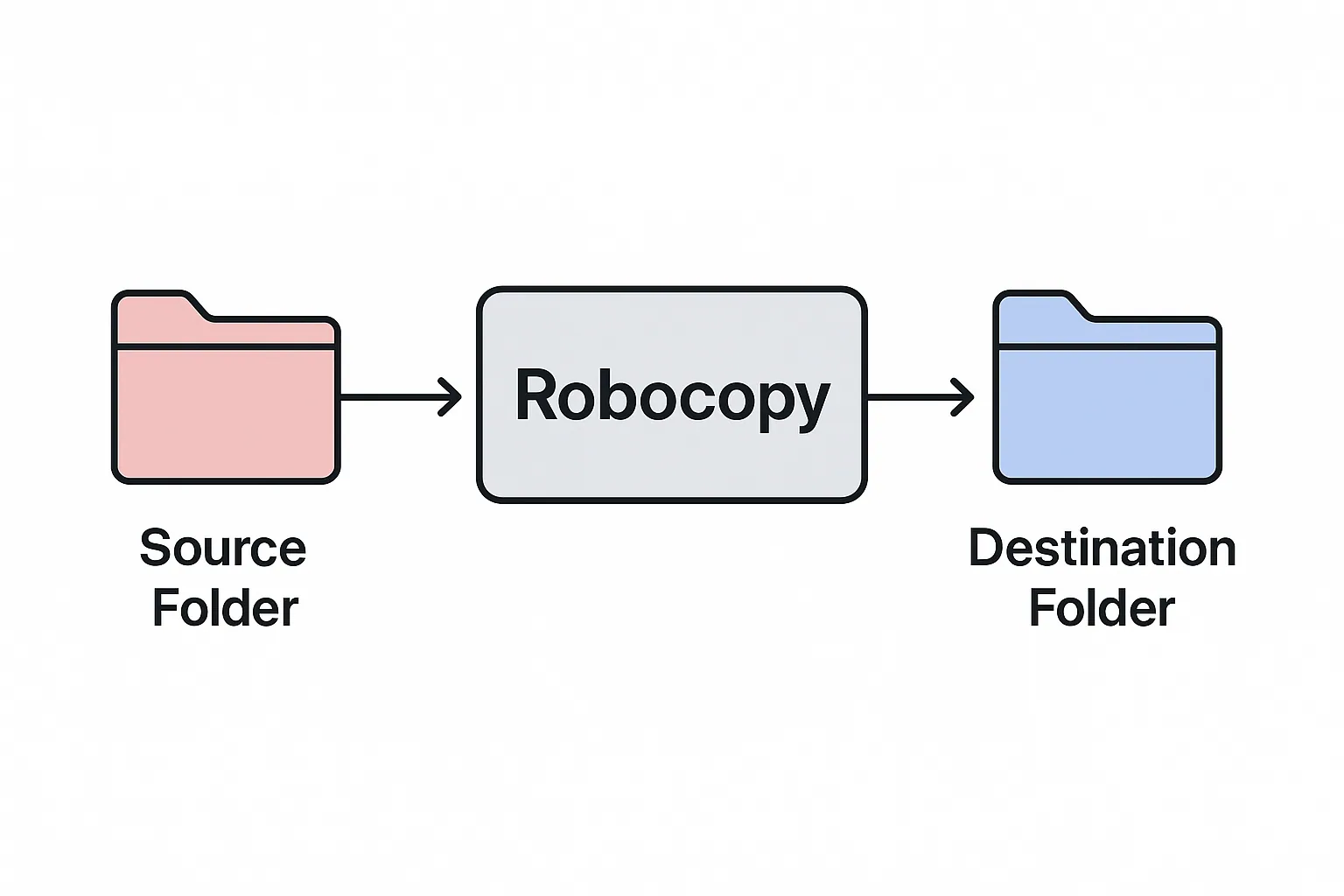
This command copies everything inside C:\Data into D:\Backup, including empty directories.
Example Usage and Practical Scenarios#
1. Copy all files and subfolders#
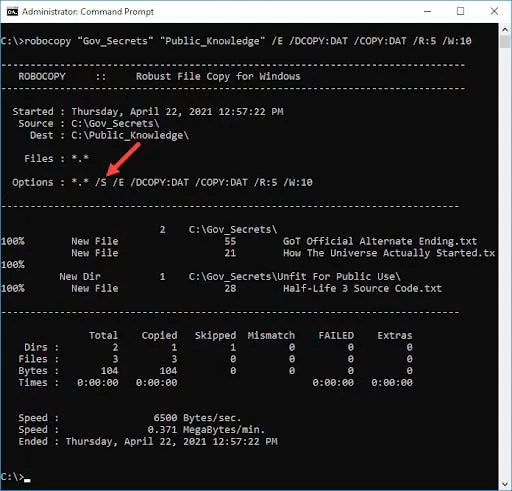
/E copies all directories, including empty ones.
2. Mirror an entire directory#
/MIR makes the destination an exact clone.
Warning: it deletes files in the destination that do not exist in the source.
3. Multi-threaded copying for maximum performance#
Uses 16 threads for a faster transfer. The default is 8, and the maximum is 128.
4. Copy only files changed in the last 2 days#
5. Exclude specific file types#
6. Copy NTFS permissions#
/COPYALL copies file data, attributes, timestamps, ACLs, owner information and auditing rules.
7. Generate a detailed log file#
8. Restartable mode for unstable networks#
/Z lets the copy resume after an interruption.
Real World Use Cases#
1. Automated daily backups#
Create a scheduled task that runs a Robocopy script every night.
2. Data migration between servers#
Sysadmins use Robocopy for seamless server upgrades.
3. Versioned backups#
Use log files and timestamps to keep historical snapshots.
4. DevOps file sync workflows#
Robocopy can plug into build pipelines for configuration sync.
Performance Tips#
- Use
/MT:32or/MT:64for faster copying if CPU resources allow - Avoid
/MIRunless you want exact replication - Use
/Zon unstable networks, but note that it can reduce speed - Use
/LOGfor audit trails - Combine
/XOand/XNto skip unnecessary transfers
Full Practical Example Script#
Save this as backup.bat and schedule it.
Conclusion#
Robocopy is one of the most reliable tools for file transfer, backup automation and large-scale data migration on Windows. With multi-threaded copying, resumable transfers and granular filtering, it easily outperforms traditional file copy commands. Whether you are a system administrator, developer or power user, mastering Robocopy will noticeably improve your workflow.
If you are planning to automate backups or move large amounts of data on Windows, Robocopy should be your first choice. On Linux, the equivalent is rsync.
Filed under windows, robocopy, backups

Written by Dhananjay Aggarwal