# Make Any App Load Faster With Just 6 Lines of HTML
- Source: https://intervueclub.com/blog/make-any-app-load-faster-with-6-lines-of-html
- Author: Dhananjay Aggarwal
- Published: 2025-12-20
- Tags: web-performance, html, frontend
A six-line fade-in that hides the half-rendered page until it’s ready, why it changes how fast an app feels, and how to check it in DevTools and Lighthouse.
Improving performance often sounds like it needs complex caching layers, micro-optimizations or a total architecture redesign. But there is a simple approach that can make almost any web app feel instantly faster. It takes only **six lines of HTML**.
Engineering teams use this technique to reduce perceived load time, improve first contentful paint and deliver a smoother user experience without touching backend logic.
In this article you will learn why it works, how to implement it, and how to validate its impact.
## Why Perceived Speed Matters More Than Actual Speed
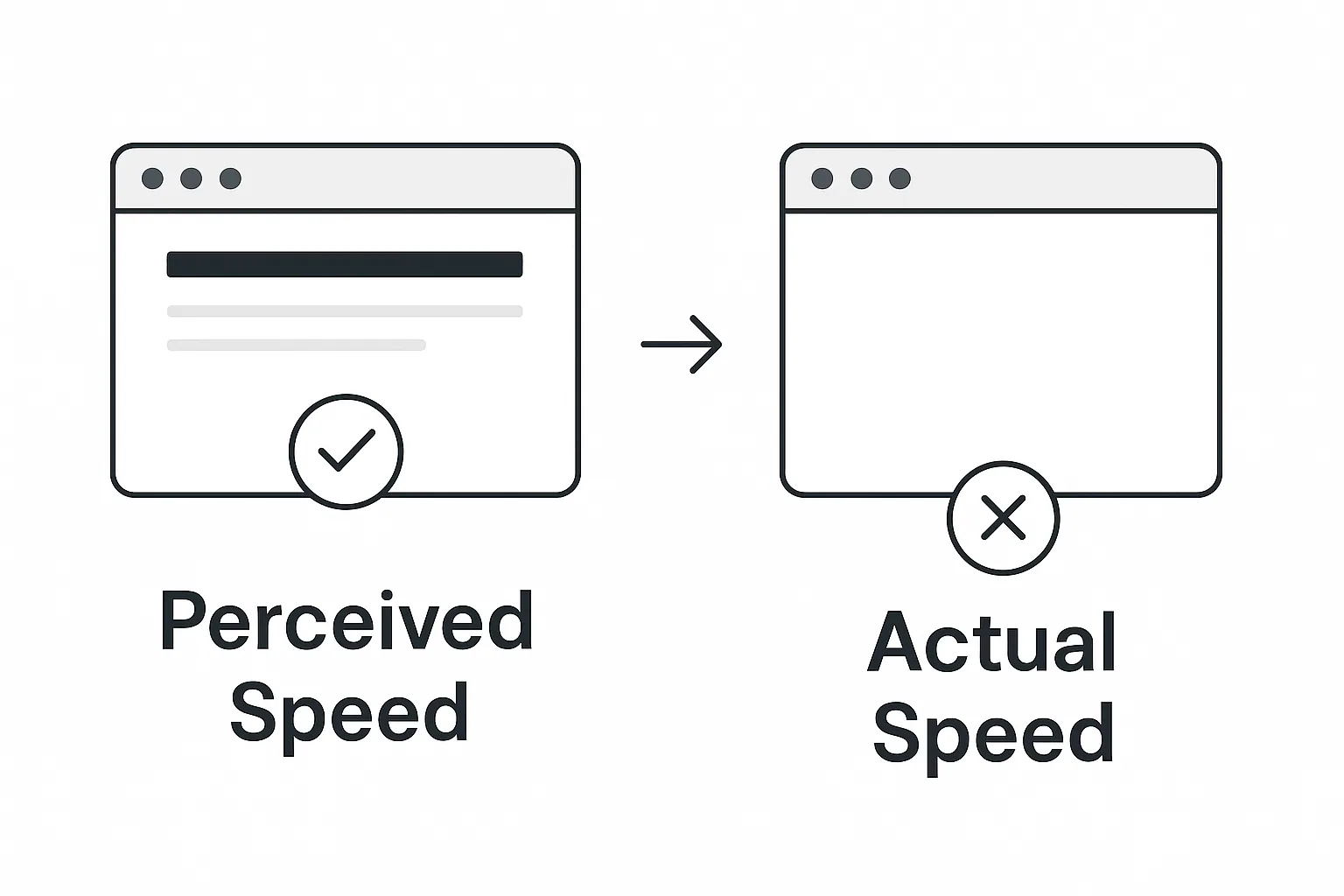
Users do not wait for “the app to load”. They wait for *something to appear*. If the screen stays blank, even 1 second feels slow. If the screen shows meaningful UI or skeletons within 150 ms, the brain reads the app as fast.
This is why modern frameworks ship splash screens, skeletons and instant-feedback patterns. But you can get the same effect with nothing more than native HTML.
## The 6 Lines That Change Everything
Here is the exact snippet:
```html
```
These six lines do something very simple yet powerful.
**They hide the unstyled, half-rendered app until everything is ready, then fade in the fully loaded UI.**
This removes the classic problems of:
- Flash of unstyled content
- Blocky layout shifts
- Components rendering half-finished
- Delayed font loads
- Perceived lag during hydration in React, Vue or Next.js apps
The user sees a clean, smooth transition instead of a chaotic load sequence.
## How It Works Behind the Scenes
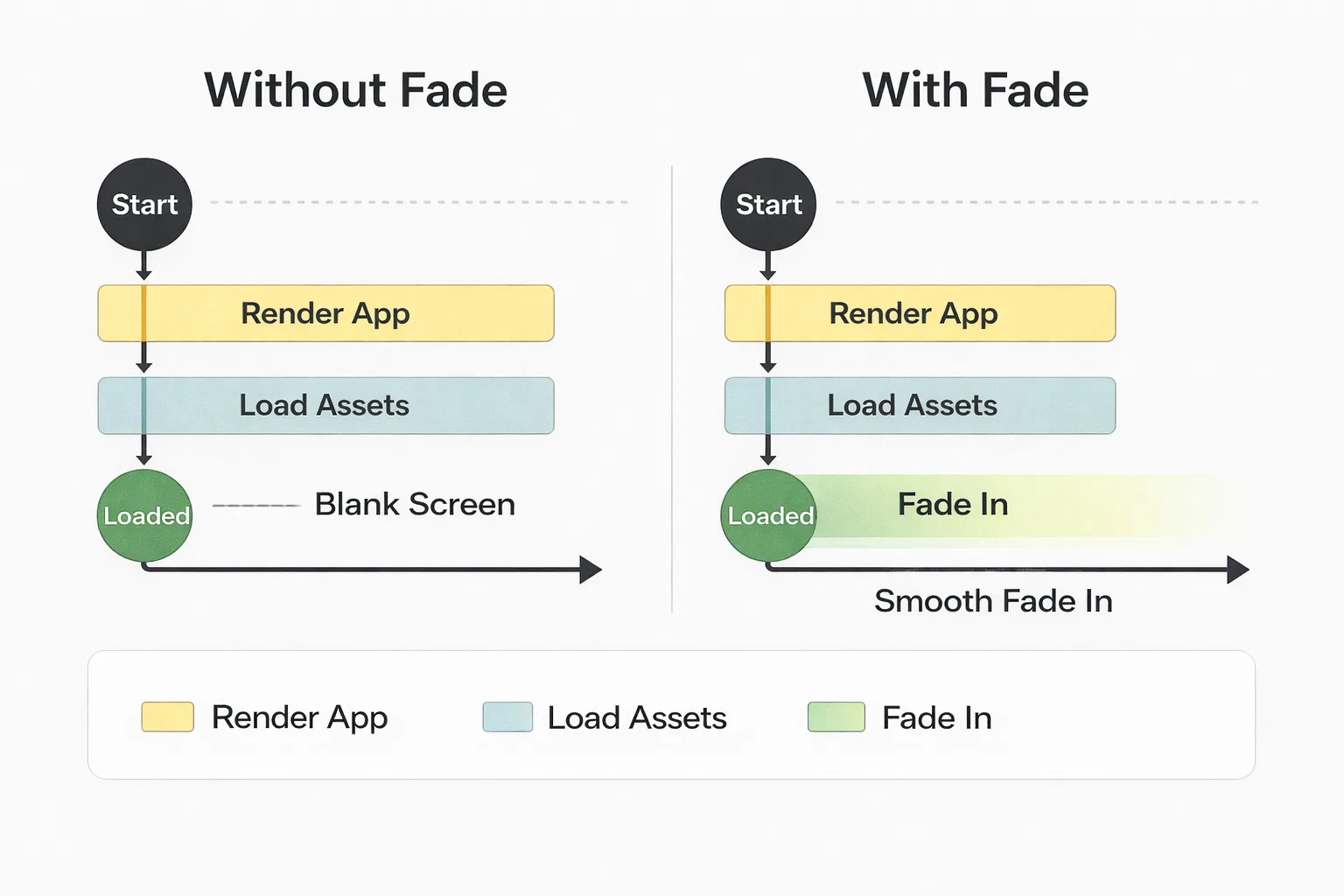
Let’s break the snippet down.
### 1. Set the initial body opacity to zero
```css
body { opacity: 0; transition: opacity 0.3s ease; }
```
The app renders fully *behind the scenes* but is not visible yet.
### 2. Fade in on window load
```js
window.onload = () => document.body.style.opacity = 1;
```
This waits until all assets have loaded, then smoothly reveals the page.
The brain reads this as a fast app because nothing visibly “breaks” during the initial paint.
## Real Example: Fixing a Slow React Single Page Application
Here is a common problem.
You open a React app and the first thing you see is:
- an empty white page
- then the header pops in
- then fonts load
- then components shift
- then styles apply
By the time the app settles, users already feel it’s slow.
Add the fade snippet to your `index.html` or `public/index.html` file:
```html
```
Refresh the app and it feels instantly polished.
The same logic applies to any stack: React, Vue, Svelte, Angular, Next.js, Remix, plain HTML or legacy PHP sites.
## Why This Trick Works Even Better on Heavy Apps
Large applications often have:
- heavy bundles
- runtime hydration
- multiple network calls
- third-party libraries
- analytics trackers
- CSS frameworks loading separately
All of these cause flashes of incomplete UI.
Hiding the app until it is visually stable cuts user frustration significantly.
This technique does not reduce actual load time. It reduces *felt* load time, which matters more in real usability studies.
## Adding a Custom Loading Screen (Optional but Effective)
To go one step further, replace the blank background with a loading screen:
```html
Loading your experience...
```

This gives users instant feedback while the real app loads invisibly behind it.
## Performance Impact You Can Validate
You can measure the improvement with:
1. **Chrome DevTools Performance panel:** check the “First Contentful Paint” visual timeline.
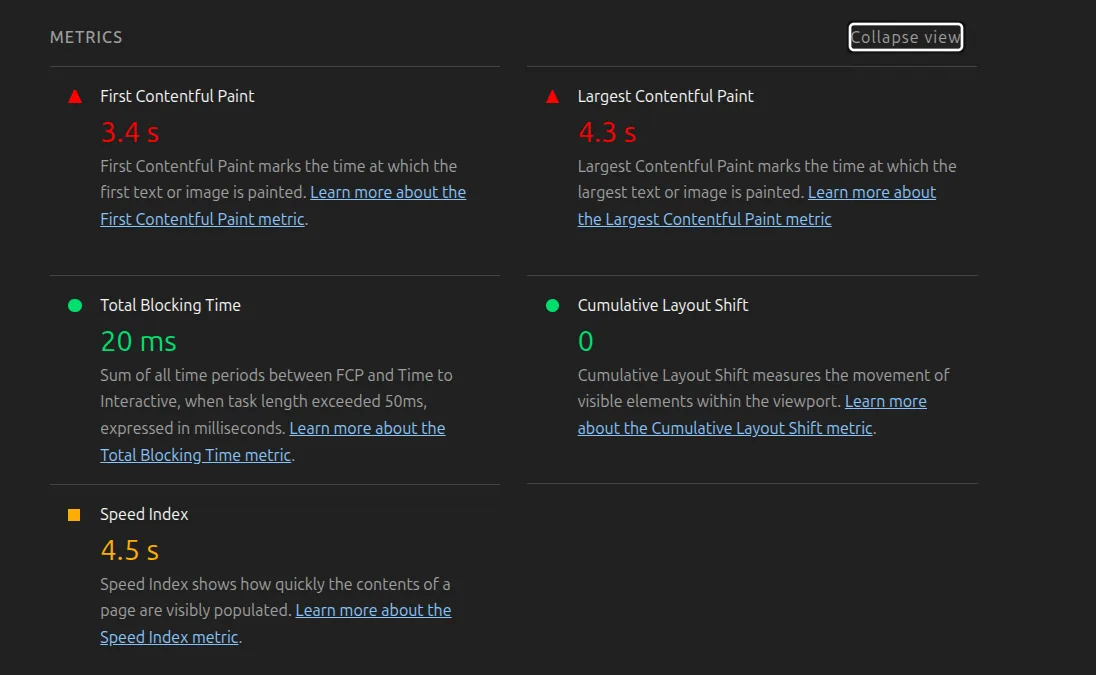
2. **Lighthouse audits:** perceived performance improves even though actual time stays about the same.
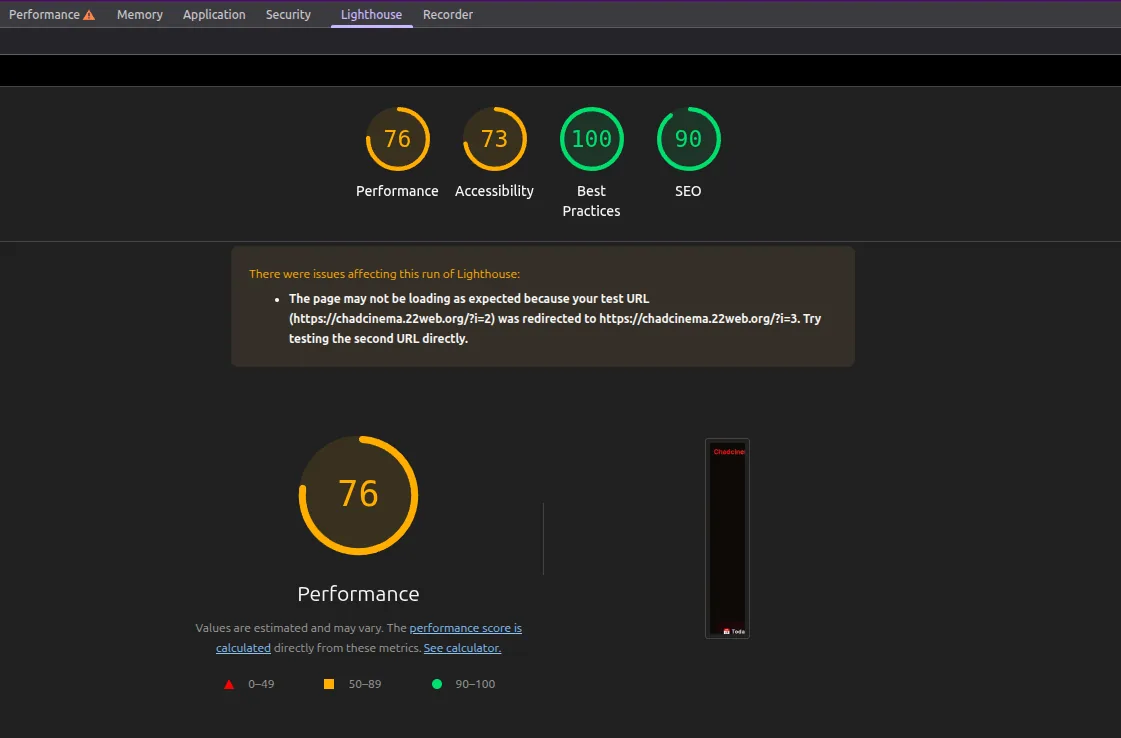
3. **User testing:** most users describe the app as “faster” or “more responsive”.
## SEO and Accessibility Considerations
This technique is safe for SEO because:
- content still loads normally in the HTML
- search engines don’t care about the opacity
- screen readers read the content regardless of visibility
Just avoid long fade durations. Stick to 0.2 to 0.4 seconds for the best UX.
## A Quick Before and After
**Before:**
The app flashes white, styles pop in, components shift and fonts snap into place.
**After:**
The app appears clean, stable and fully rendered.
This one tiny improvement often makes a platform look like it has professional-level performance engineering behind it.
## Conclusion
Optimizing performance does not always require complicated tools. With just six lines of HTML you can deliver noticeable perceived-performance gains, reduce visual jank and create a smoother experience for every user.
Try it on your project today. The difference is immediate.